



Kisan Hisab · Farm income & expenses
Farm income and expense tracker
Kisan Hisab is a farm income and expense tracker: you write down every crop sale and every farm expense on your phone, with the amount, the crop, the party and whether it is paid. It is free, and it works without internet.
The problem it solves
- Expenses end up in many places: a notebook, paper slips, a shop’s bill book and memory.
- At the end of the season it is hard to say what the crop really cost.
- You are not sure whether the fertiliser shop has been paid, or how much the trader still owes.
- Commission and transport are cut from a sale, and the sale amount you remember is not what you received.
How it works in Kisan Hisab
- Open “Entries” and tap “Income” for a sale or “Expense” for something you spent.
- For an expense, choose its category, such as Seeds, Fertilizer or Diesel / Fuel. For a sale, only the amount is needed.
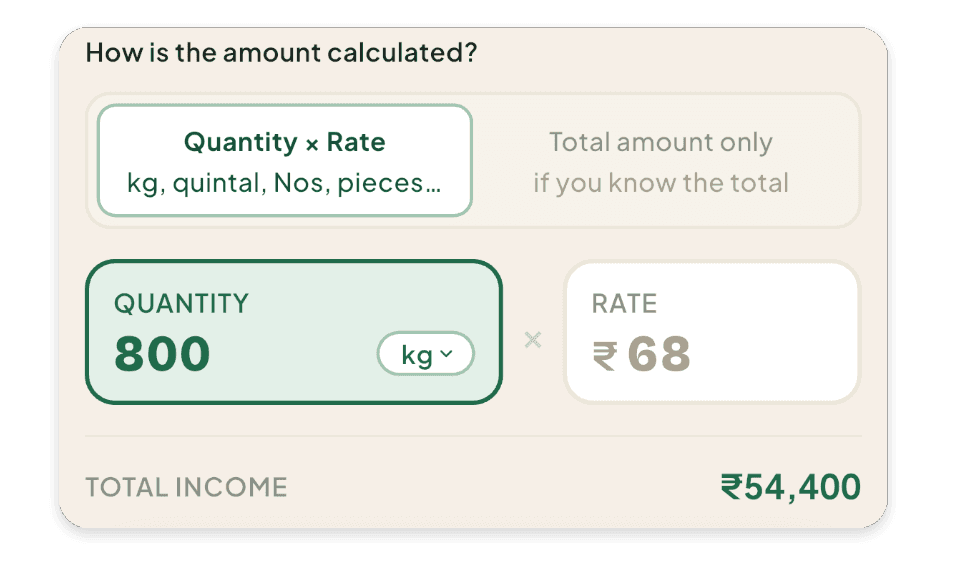
- Enter the money as a total, or as quantity and rate: 1,200 kg at ₹70 is worked out as ₹84,000 for you.
- Choose the crop, the date and the party under “More details”, and keep it “Pending” if the money has not moved yet.
- When part of the money comes in or goes out, add it from the entry’s page. The entry shows what is still pending.
What you can keep
Crop sales
What you sold, to whom, the quantity and rate, and whether the money is received, part received or pending.
Farm expenses by category
Seeds, manure, fertiliser, pesticide and sprays, irrigation water and power, labour, tractor and machine, diesel, transport, mandi fees, land rent, crop insurance and more, plus categories of your own.
Charges on a sale
Commission, transport and other cuts the trader takes, kept as their own expenses, so the sale stays at its full amount.
Payments and due dates
Paid, pending, part payments and a due date, with Overdue shown when it passes.
Bills and receipts
A photo or PDF of the bill kept with the entry, from the camera, gallery or a file. It stays inside the app, not in your phone’s gallery.
How it works with the rest of the app
- Crop-wise profitEvery entry under a crop season adds to that crop’s profit.
- Party khataEntries with a buyer or a shop build that party’s khata: what you will receive and what you must pay.
- Labour attendance & wagesPaying a labourer adds the wage to your expenses under the crop, by itself.
- Contract farmingContract money is kept apart from your entries, so it is never counted twice.
Common questions
How do I add income or an expense?
- Open “Entries” and tap “Income” or “Expense” at the bottom.
- Choose the crop under “Crop season”.
- For an expense, choose the “EXPENSE CATEGORY”.
- Enter the money: either “Quantity × Rate” or “Total amount only”.
- Under “MORE DETAILS (OPTIONAL)” you can set the date and the party.
- Choose “Pending” if the money has not been paid yet, and set the “DUE DATE”.
- Tap “Save income” or “Save expense”.
The question mark at the top of the form explains every field.
I got only part of the money. How do I record it?
- Save the entry as “Pending”.
- Later, open the entry.
- Tap “Part received” (or “Part paid” on an expense), enter the amount, and tap “Save payment”.
- When all of it is paid, tap “Fully received” or “Fully paid”.
Each payment is listed on the entry and can be changed or removed there.
The trader cut commission or transport from my sale. How do I enter it?
- In the income form, enter the full sale amount first.
- Tap “Sale-related expenses”.
- Choose what it was, enter the amount, and tap “Save expense”.
It is saved as a separate expense. The sale stays at its full amount, so your income and your costs are both right.
How do I keep a photo of a bill with an entry?
- In the entry form, or on a saved entry, tap “Receipt / photo”.
- Choose “Camera”, “Gallery” or “File”.
The photo is kept inside the app. It does not show in your phone's gallery.
How do I add, change or remove an expense category?
- Open “More” > “Categories”.
- To add: tap “Add” at the top right.
- To change or remove: tap the category and choose “Edit”, “Archive” or “Delete”.
A category that has expenses can only be archived, so those expenses keep their name.
How do I find an old entry?
- Open “Entries”.
- Tap the filter icon at the far top right (“Filter entries”).
- Choose a date range, “Crop”, “Party” or payment status, then tap the button at the bottom.
The arrows icon beside it changes the order, for example “Largest amount first”.
How do I correct an entry?
- Open “Entries” and tap the entry.
- Tap the pencil at the top right.
- Change what is wrong and tap “Save changes”.