



Kisan Hisab · Labour attendance & wages
Farm labour attendance and wages
Kisan Hisab keeps each labourer’s attendance and wage account: mark a day Present, Half day or Absent, and the app works out what they earned, what you paid and what is still due. Wages you pay go into your farm expenses under the crop.
The problem it solves
- Days worked are kept on a wall calendar or in memory, and the count at the end of the month is argued over.
- Advances given in the middle of the month are forgotten when wages are settled.
- Picking is paid by the kilo, and adding up the day’s weighings by hand takes time.
How it works in Kisan Hisab
- Open “More” > “Attendance”, add a labourer and choose how they are paid: a usual daily wage, an amount you type each day, by weight per kg, or attendance only for a monthly salary.
- Mark each day Present, Half day or Absent, for today or an earlier date. Half day has its own rate, not simply half.
- For picking by weight, type each weighing: the app adds them up and works out the wage.
- Pay in full, in part, or as an advance. Each payment is saved as an expense under the crop you choose.
What you can keep
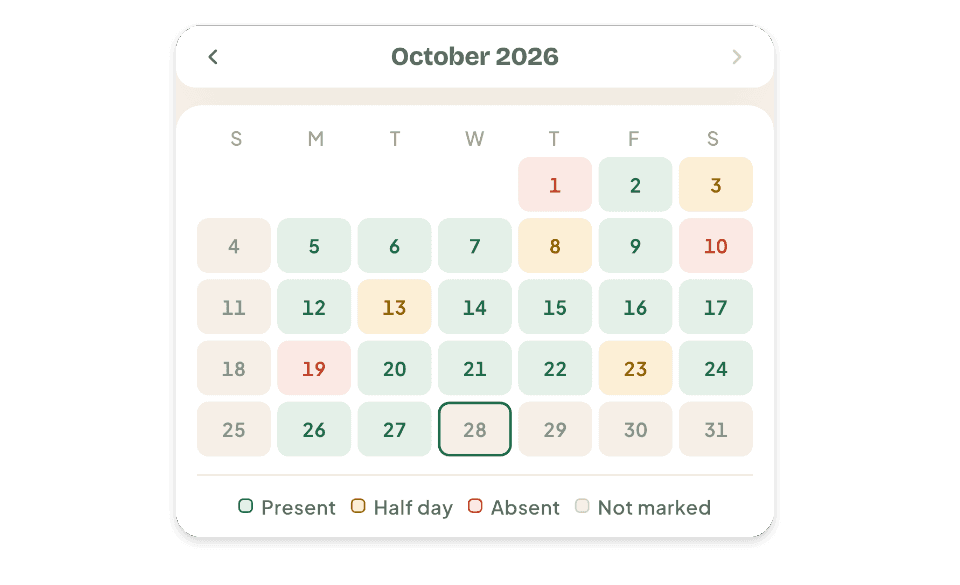
Attendance calendar
Each labourer’s month: present, half days and absent days.
Wages
A usual daily wage, a custom amount on any day, a rate per kg, or attendance only.
Paid and pending
What each labourer earned, what you have paid, advances, and what is still due.
Family on a day
Names of family members who came with a labourer, kept as one account and one amount.
How it works with the rest of the app
Common questions
How do I start attendance for a labourer?
- Open “More” > “Attendance” and tap “Add worker”.
- Choose the labourer, or add a new party.
- Choose how they are paid:
- “Per day”: a usual daily wage, filled in for you each day.
- “Ask every day”: you type the amount each day.
- “Attendance only”: only days are counted, for a monthly salary.
- “By weight”: paid per kg picked.
- Tap “Add to attendance”.
How do I mark, change or remove a day?
- Open “Attendance” and tap “Log attendance” on the labourer's card.
- Choose “Present”, “Half day” or “Absent”.
- Check the amount and tap “Save the day”.
- To change a day, open it again and save.
- To remove it, open it and tap “Clear”.
- For an earlier date, use the arrows on the date bar at the top. A future date cannot be marked.
How do I pay a labourer, in full, in part or in advance?
- Open “Attendance” and tap the labourer.
- Tap “Payment”, then “Record a payment”.
- Tap “Pay it all”, or type a smaller amount for a part payment. With nothing owed, the amount is kept as an advance.
- Choose the crop the work was for and tap “Pay and record expense”.
The payment is added to your expenses under that crop.
How do I pay by weight, for picking?
- Set the labourer to “By weight” with a rate per kg.
- Open the day. Type each weight in kg and tap “Add”. Each weight is saved at once.
- The app adds the weights and works out the wage.
- A different price for one day: tap “Change rate”.
- A wrong weight: tap the cross at the end of its line.
Family comes with a labourer and I pay one person. How do I record it?
- Open the labourer's day.
- Under “WHO ELSE CAME?”, tap a name, or tap “Name” to add one.
- Check the amount: it is one amount for everyone. Then tap “Save the day”.
A name is only a label. All the money stays in the one labourer's account.
To add, rename or remove names, tap the icon at the end of that title.
I marked attendance. Why is it not in my expenses?
Marking a day only adds to what you owe the labourer. It becomes an expense when you pay.
This is so a wage is never counted twice, once as a day and once as a payment.
How do I change a wage, or stop attendance for a labourer?
- Open the labourer and tap “Edit config”.
- Change the wage type or amount and tap “Save changes”. Days already marked keep their old amount.
- To stop for now, turn on “Pause attendance tracking”. Their history is kept.
- To take them off, tap “Remove from attendance”. They stay in “Parties”, and money still owed keeps showing until you pay it.